Why only part of your HTML page imported into Webflow, and how to fix it
Updated
A full page usually fails for one of five reasons: the file is larger than the converter's limit, the page is built by scripts so the HTML file is almost empty, the CSS or images are in separate files that were not included, the images link to places Webflow cannot publish from, or the page uses CSS that Webflow's style panel does not accept. Convert the page as it renders, include its files, and connect your site's Assets.
Find the cause
| What you see | Likely cause | Fix |
|---|---|---|
| Only the first sections arrive | The code is over the size limit, or the rest is built by scripts | Capture the rendered page, or convert it section by section |
| Elements arrive unstyled | The CSS is in a separate file that was not included | Drop the project folder as a .zip, or put the CSS in a style tag |
| Images show in the Designer and break when published | The images link to another site or to local files | Connect Webflow images, so they upload to your Assets |
| Grids or columns collapse | The layout depends on CSS that had to stay as custom code | Read the paste report, then publish or preview to check |
| Text falls back to a default font | The font is not on your Webflow site | Add the font in Site settings, or use Match my site |
Convert what the browser shows, not the file
Pages from AI builders and React projects often have very little HTML in the file: scripts build the page when it opens. A converter that reads only the file sees the few elements that are written out, which is often the menu and the hero.
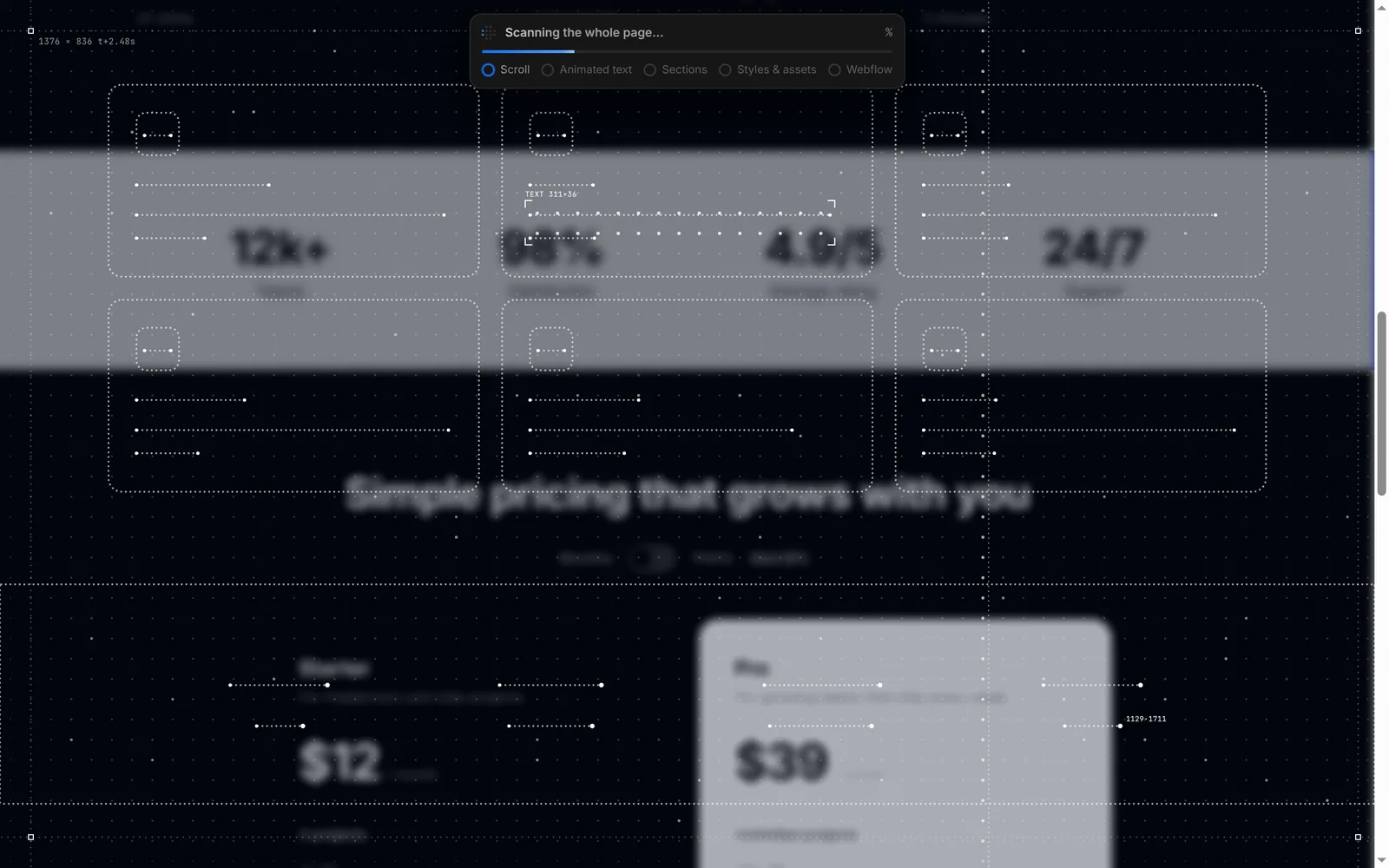
FlowPaste renders JSX, TSX, script-built HTML and .zip project folders before it converts them. For a page that is already online, click the FlowPaste toolbar icon and choose Capture the full page.
Include the files the page needs
- One HTML file with its CSS in a style tag converts as it is.
- A page with linked CSS, scripts and images converts from a .zip of its folder: drop the .zip on the Convert tab.
- On the free plan a conversion takes up to 8,000 characters and a full-page capture uses the day's 3 runs. Pro has no size limit.
Get the images into Webflow
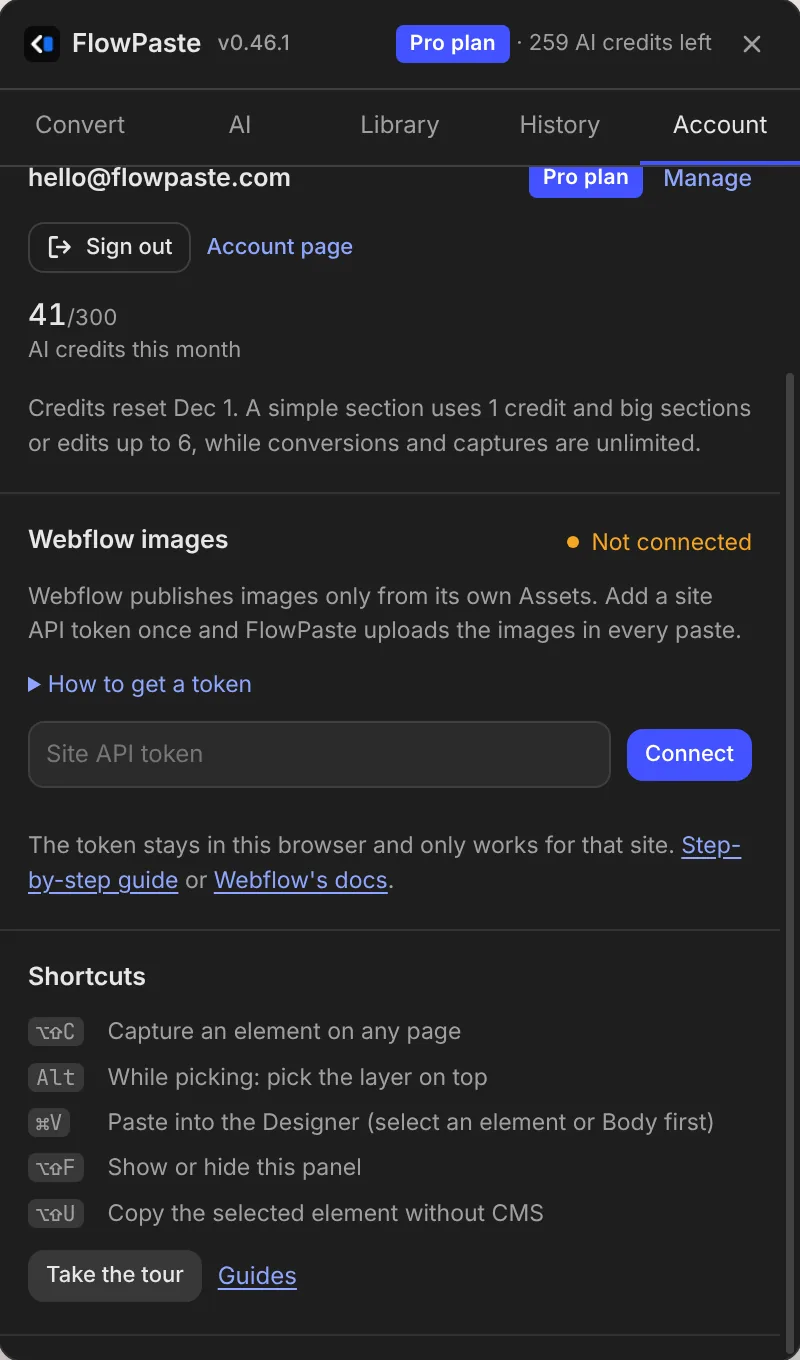
Webflow publishes images only from its own Assets. Make a site API token in Webflow and paste it in FlowPaste → Account → Webflow images. FlowPaste then uploads the images of each paste to your site. Images over 4 MB are skipped, so resize those first.
Read the paste report
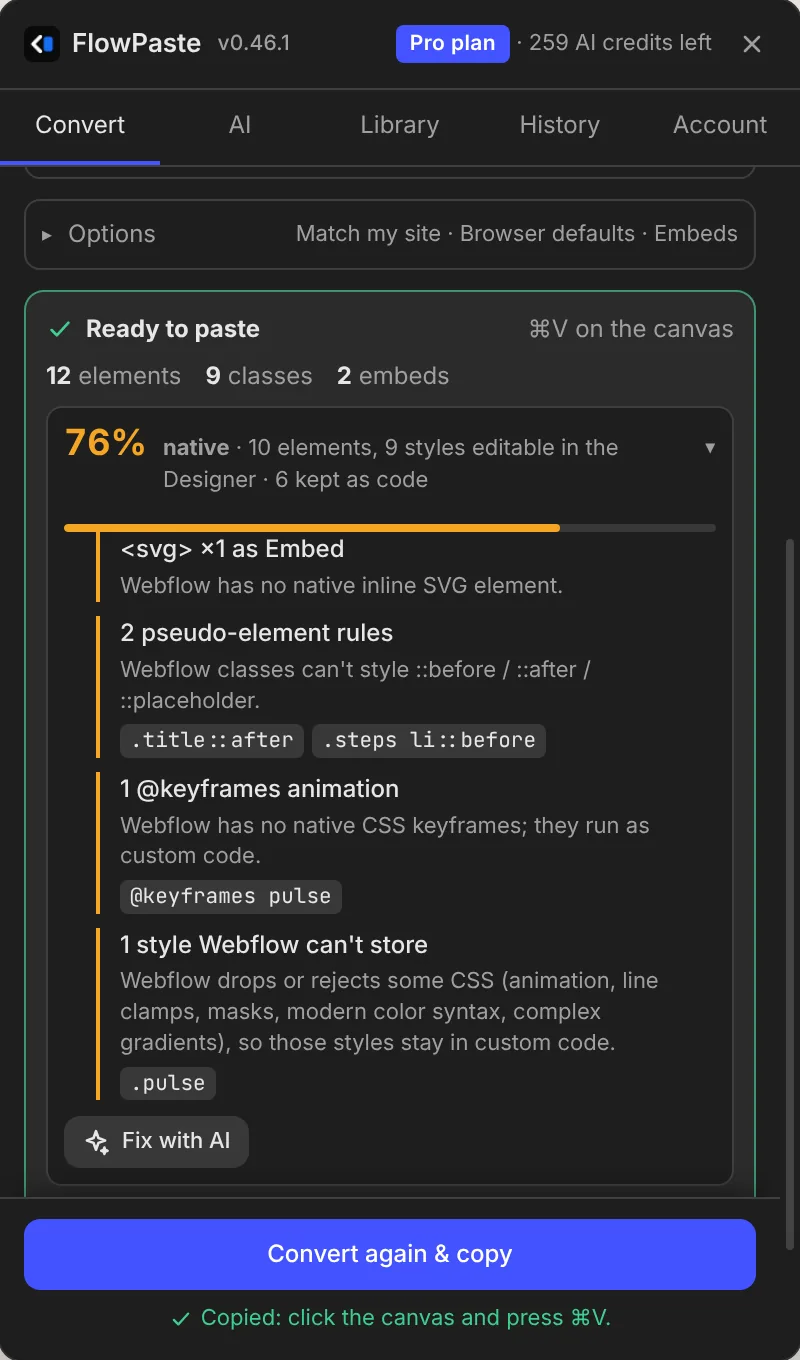
After each conversion FlowPaste shows how much of the result is native and lists what stayed as custom code and why, for example pseudo-elements, keyframes or selectors Webflow has no setting for. If a layout looks wrong on the canvas, check Preview first, because custom code and scripts do not run in the Designer.
Questions
Why did only the hero and the menu import?
Most often the rest of the page is built by scripts, so it is not in the HTML file, or the code is over the size limit of your plan. Capture the page as it renders in the browser, or convert it one section at a time.
Can I import a whole HTML file into Webflow?
Not with Webflow alone; drop the HTML file, or a .zip of the project folder, on FlowPaste's Convert tab instead. The full answer, with the methods compared, is on the HTML to Webflow page.
Why are my images missing after I publish?
They still link to the original site or to files on your computer. Connect Webflow images in FlowPaste so every pasted image is uploaded to your site's Assets.
Should I paste a full page at once or section by section?
Section by section is easier to check and fix, and it fits the free plan. A full-page capture is faster when the page is long and you are on Pro.