How to turn an AI-generated section into a Webflow component with properties and variants
Updated
Paste the section into Webflow as native elements first, then build the component in the Designer: select the section, create a component from it, connect properties to the text, images and links that change, and add variants for the style options. FlowPaste does the first part. It does not create the component, its properties or its variants for you.
Why the section has to be native elements first
Component properties connect to settings of real Webflow elements: the text of a heading, the image of an Image element, the link of a button, whether an element shows. A section that sits in a Code Embed has none of those to connect, so it can only be reused as one fixed block.
A converted section arrives as Webflow elements with named classes, so after the paste it behaves like a section you built by hand.
Steps
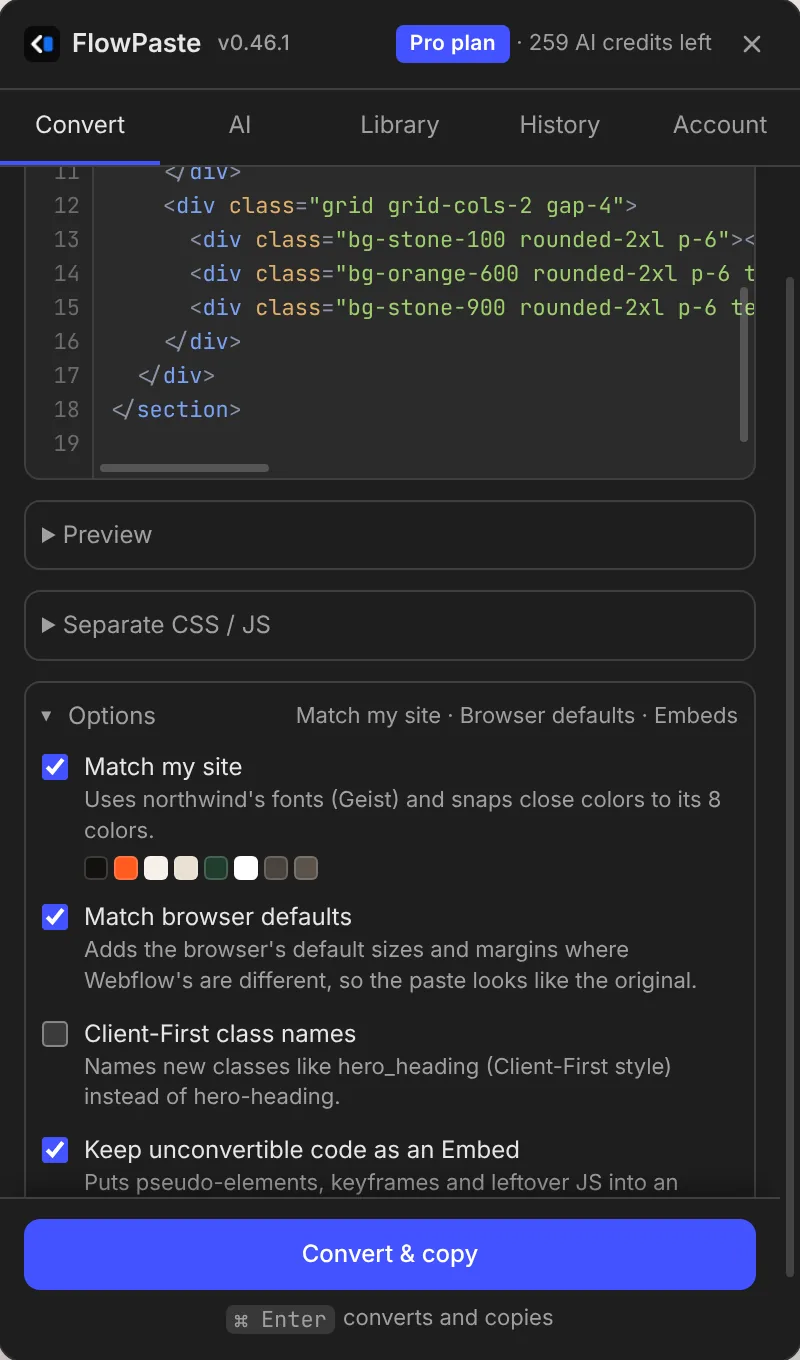
- Convert the code in the FlowPaste panel (or click Copy to Webflow on a Claude Design preview) and press ⌘V (Ctrl+V) on the canvas.
- Check the pasted section: rename any class you want to keep for the long term, and replace placeholder images.
- Select the section's outer element and create a component from it in Webflow.
- Edit the main component and create a property for each thing that changes between uses, such as the heading, the button link and the image, then connect each property to its element.
- Add a variant for each style option, for example a dark card or a horizontal layout.
- Use the component on your pages and set the properties and the variant on each instance.
Building a small design system from AI output
- Ask the AI tool for a set of sections in one request, with the same class names for shared parts (button, card, section heading), so the classes are created once.
- Keep Match my site on in FlowPaste, so each section uses your site's fonts and snaps close colors to your palette.
- Paste and check one section at a time, and turn each into a component before you paste the next.
- Write the variants yourself. An AI tool can write the CSS for a dark version, but in Webflow a variant is set up on the component.
Limits to know
- Webflow does not let you put a Collection list inside a component, so keep CMS lists outside it.
- Images from an AI tool are placeholders. Replace them before you make the component, or connect an image property so each instance sets its own.
Questions
Does FlowPaste create Webflow components automatically?
No. FlowPaste pastes native elements and classes. You create the component, its properties and its variants in the Designer.
Can I add properties and variants to a section pasted from Claude Design?
Yes. Once it is pasted as native elements it is a normal Webflow section. Create a component from it, then add properties for the content and variants for the style options.
Should I make the component before or after I fix the classes?
After. Rename classes and tidy the structure first, because every instance of the component shares that structure.
Can the AI tool write the variants for me?
It can write the styles of each version, which saves time, but you still add each variant on the component in Webflow and apply those styles there.