How to redesign an existing section with AI and bring it back into Webflow
Updated
Yes, a round trip works. Get the section to the AI as a screenshot plus its HTML, ask for the new version as one HTML file, then convert that file to native Webflow elements and paste it next to the original. With FlowPaste you can also skip the middle: copy a section in the Designer, paste it into the AI tab and describe the change, or use Live Capture to bring a section from a live site straight into Webflow.
Route 1: the section is already in your Webflow site
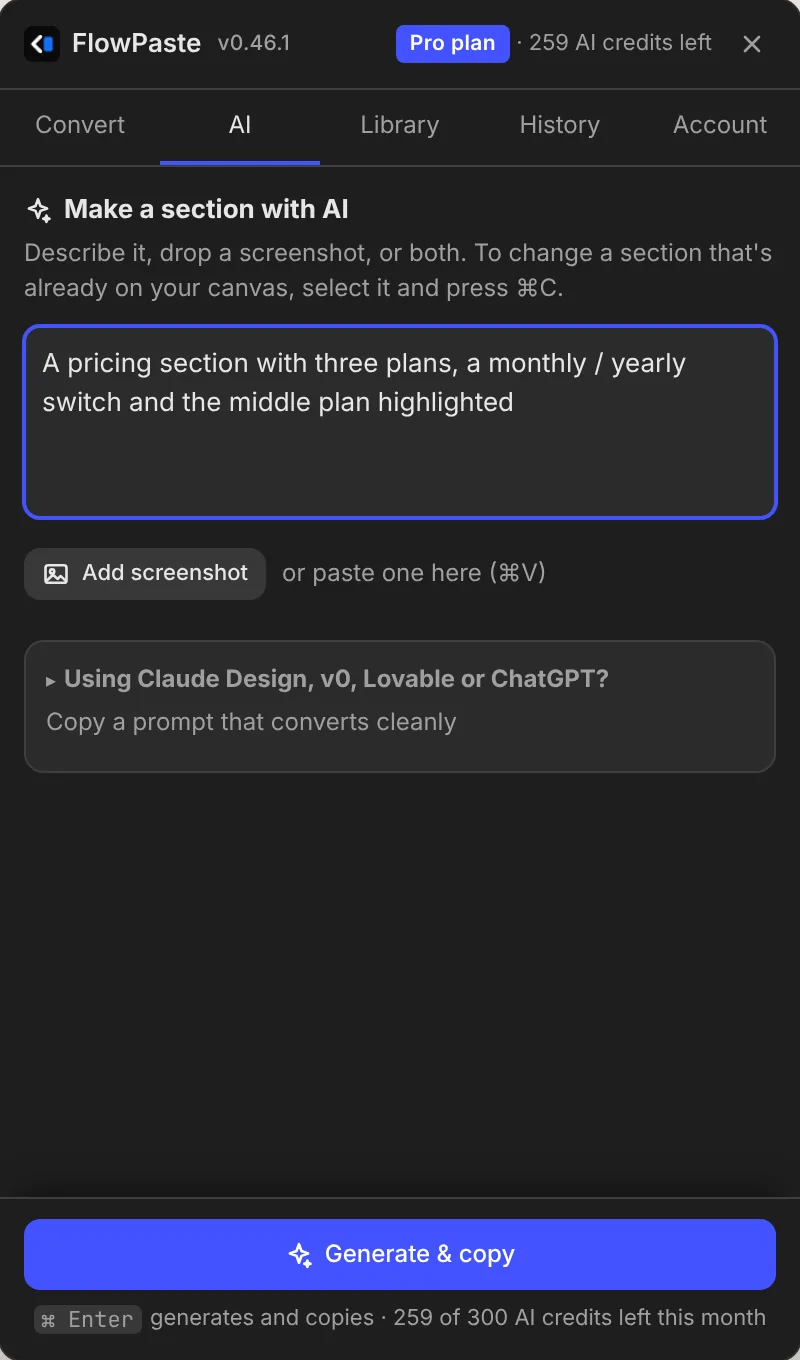
- Select the section on the canvas and press ⌘C (Ctrl+C).
- Open FlowPaste → AI, paste, and describe what to change.
- Press ⌘V (Ctrl+V) to paste the new version, compare it with the original, then delete the one you don't want.
- FlowPaste tells you when to keep the original, for example when it has CMS content or is a component, because a copy loses those connections.
Route 2: the section is on another live site you own
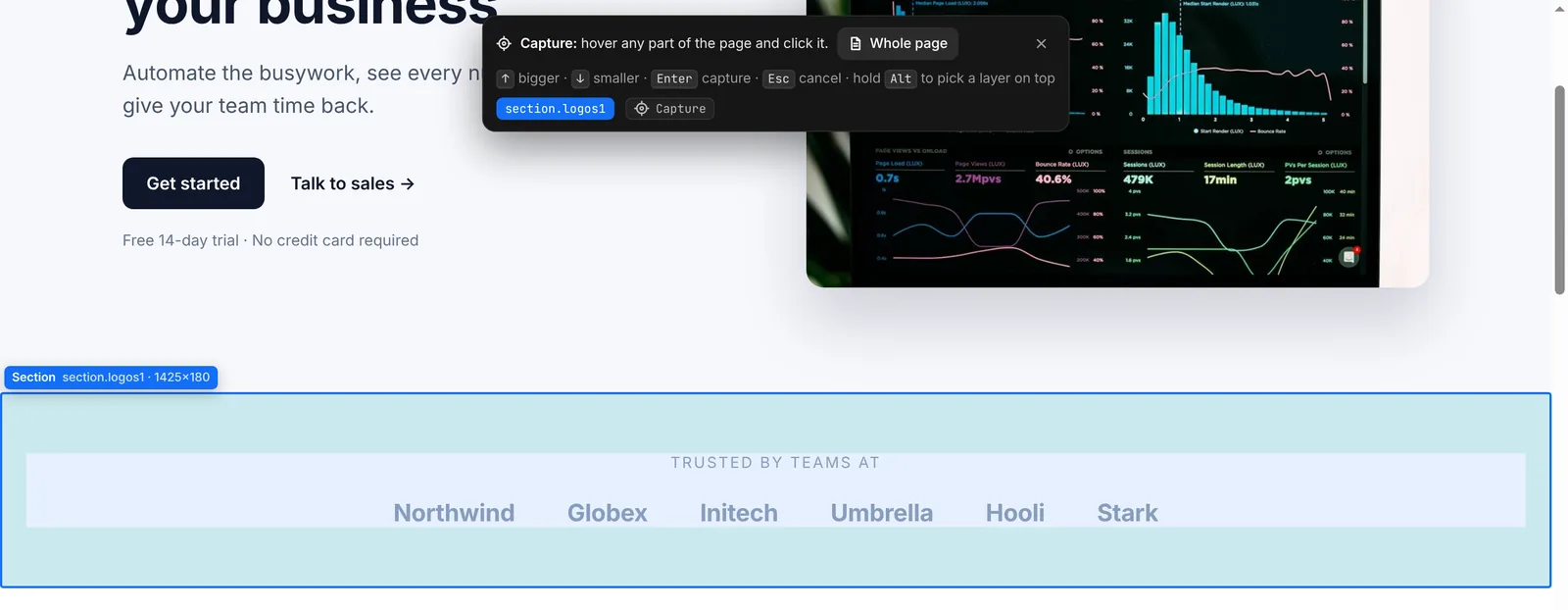
- Open the page in Chrome, click the FlowPaste toolbar icon, choose Capture an element and click the section.
- Paste it into your Webflow site, where it arrives as native elements with its classes, styles and breakpoints.
- Edit it in the Designer, or copy it and use Route 1 to change it with AI.
Route 3: rebuild it in Claude or another AI tool
- Give the AI tool a screenshot of the section and, if you have it, the section's HTML.
- Ask for one HTML file with a style tag and real class names, and say what should change.
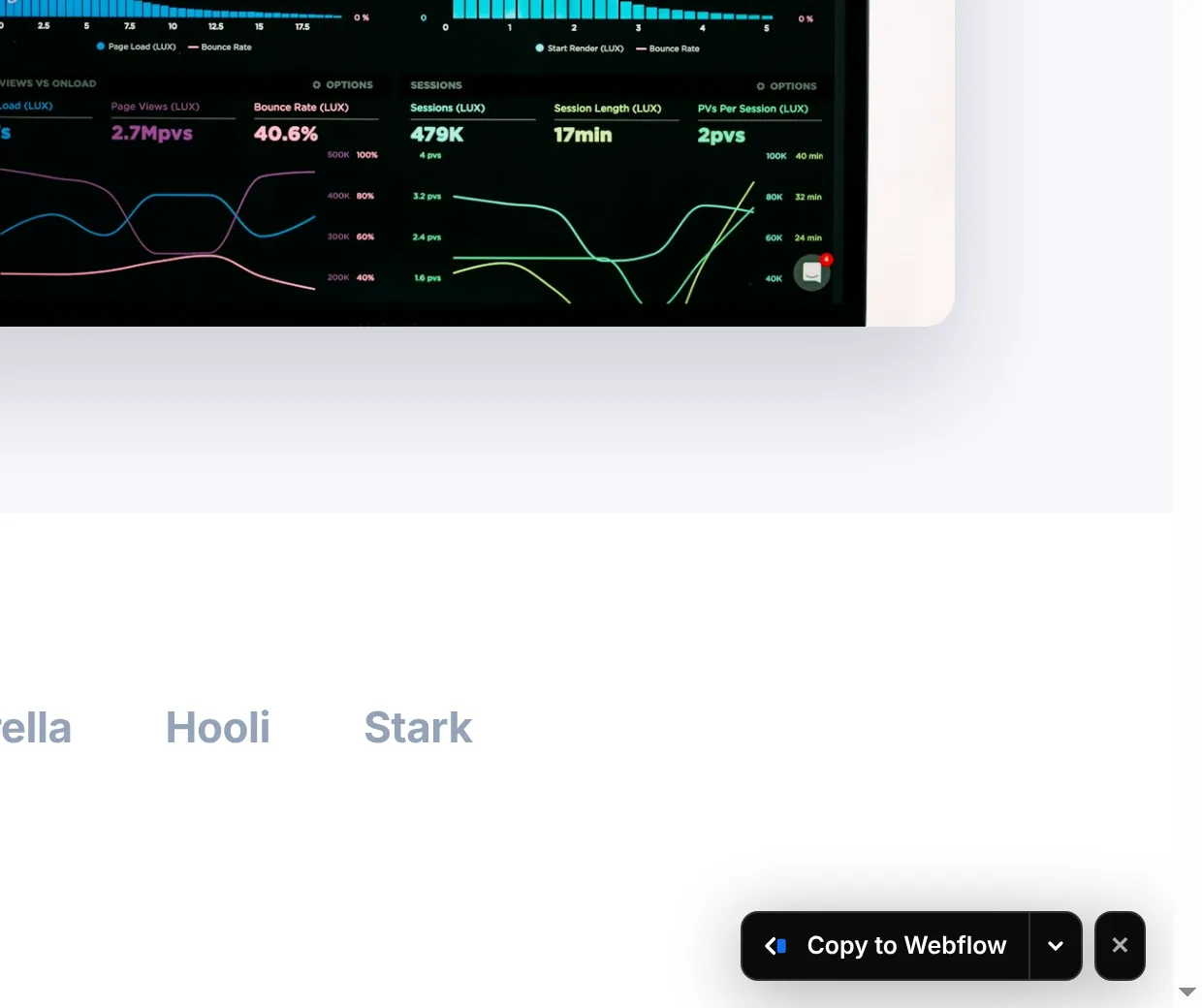
- In Claude, click FlowPaste's Copy to Webflow button on the preview. In other tools, copy the code into FlowPaste's Convert tab.
- Press ⌘V (Ctrl+V) in the Designer.
What to check after the paste
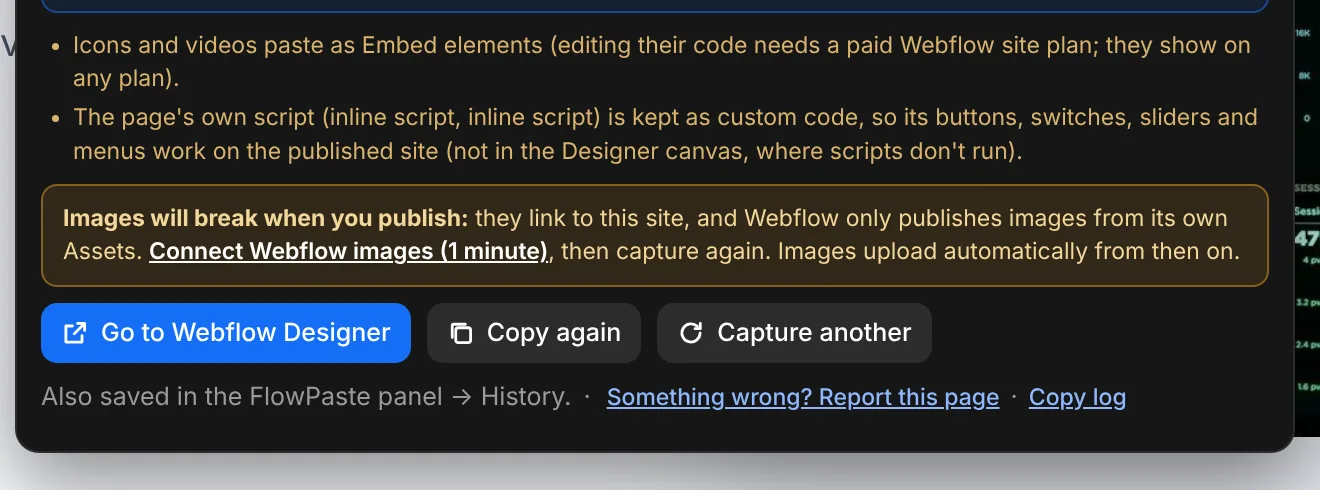
- Images: connect Webflow images once, so pasted images upload to your site's Assets and work when you publish.
- Fonts: add any font the new section uses to your Webflow site, or keep Match my site on to use the fonts you already have.
- Class names: FlowPaste renames a pasted class that would clash with a different class on your site.
- Motion: tabs, menus and animations run in Preview and on the published site, not on the canvas.
Questions
Can I take a div from an existing site, have Claude rebuild it, and import it into Webflow?
Yes. Give Claude a screenshot and the HTML, ask for one HTML file, and convert it with FlowPaste (or click Copy to Webflow on Claude's preview). The result pastes into the Designer as native elements and classes.
Does the AI change replace the section on my canvas?
No. You get a new version to paste. Your canvas stays as it is until you paste, and you choose which version to keep.
Is it allowed to capture a section from any website?
Use Live Capture only on content you have the right to reuse, such as your own site, a client's site you are rebuilding, or a design you have licensed.
Do I need Pro for this?
Converting code and capturing sections work on the free plan, with 3 runs a day. FlowPaste's own AI tab, which changes a copied Webflow section from a prompt, is part of Pro.