How to get Client-First, Lumos or MAST class names from AI code in Webflow
Updated
Do two things. First, tell the AI tool which convention to write, because classes that are already in the code keep their names when you paste. Second, set the same convention in your converter for the classes it has to create. In FlowPaste 0.47.0 and later, Convert → Options → Class names offers Default, Client-First, Lumos and MAST, and the same choice is written into the prompt that FlowPaste gives you for Claude Design, v0, Lovable and ChatGPT.
How the three conventions name the same card
All three separate the component from its part with an underscore and keep utility classes apart. They differ in how words are joined and in the prefix of combo classes.
| Convention | Component class | Combo class | Utility prefix |
|---|---|---|---|
| Client-First | pricing-card_title | is-featured | none (padding-global) |
| Lumos | pricing_card_title | is-featured | u- |
| MAST | pricing-card_title | cc-featured | u- |
Step 1: put the convention in the prompt
An AI tool names classes however it likes unless you tell it otherwise, and Tailwind output has no component classes at all. Add one line to your prompt that names the convention and shows an example, such as "Name classes Lumos style: type_variation_element with underscores only (pricing_card_title), variants as a second class that starts with is-".
In FlowPaste, open the AI tab, open "Using Claude Design, v0, Lovable or ChatGPT?", pick your tool and copy the prompt. It carries the class rule for the convention you picked in Options, together with the rules that make code convert cleanly.
Step 2: set the same convention in the converter
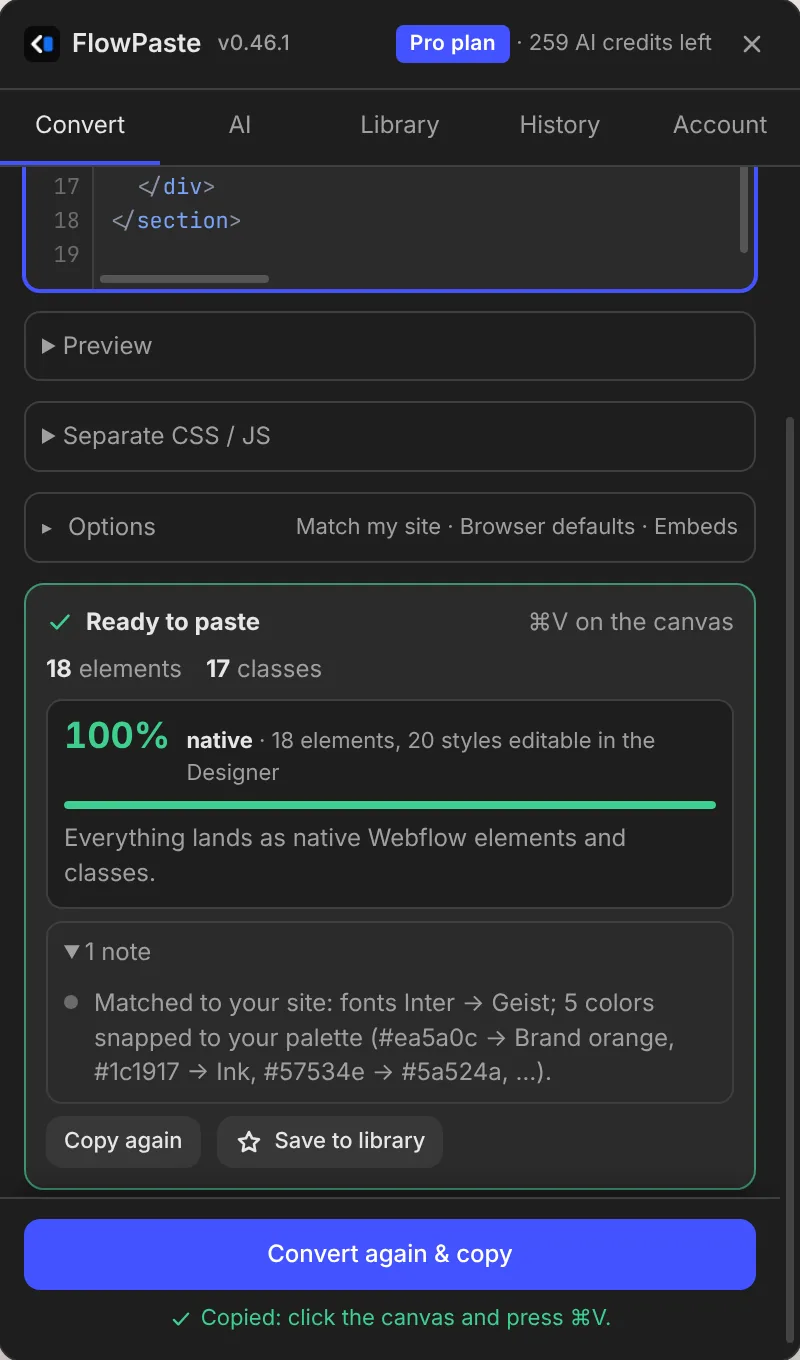
- In the Webflow Designer, open the FlowPaste panel and go to Convert → Options.
- Under Class names, pick Client-First, Lumos or MAST.
- Paste your code and click Convert & copy, then press ⌘V (Ctrl+V) on the canvas.
- Elements that had no class of their own, and every element of a Tailwind design, get names in that convention.
What FlowPaste does not do
- It does not rename classes your code already has, because scripts and custom CSS may use those names.
- It does not add a framework's utility classes (u-container, padding-global) or reuse the utility classes your site already has. You add those in the Designer.
- It does not bind colors or sizes to your Webflow Variables. Match my site uses your site's fonts and colors as plain values.
Questions
Can I use Client-First with code from Claude or ChatGPT?
Yes. Ask the AI tool to name classes the Client-First way (pricing-card_title, with is- combo classes), and turn on Client-First under Class names in FlowPaste so the classes it generates follow the same pattern.
Does FlowPaste support Lumos and MAST?
Yes, from version 0.47.0. Lumos names use underscores only (pricing_card_title) with is- combo classes. MAST names use an underscore before the element (pricing-card_title) with cc- combo classes. FlowPaste follows the naming only: it does not add either framework's utility classes.
Will pasted classes clash with the classes already on my site?
FlowPaste checks the class names on your site before the paste and renames a pasted class that would clash with one that has different styles, so the new section does not change your existing elements.
Is FlowPaste affiliated with Client-First, Lumos or MAST?
No. They are class naming systems made by other people in the Webflow community. FlowPaste only follows their naming patterns for the classes it generates.